
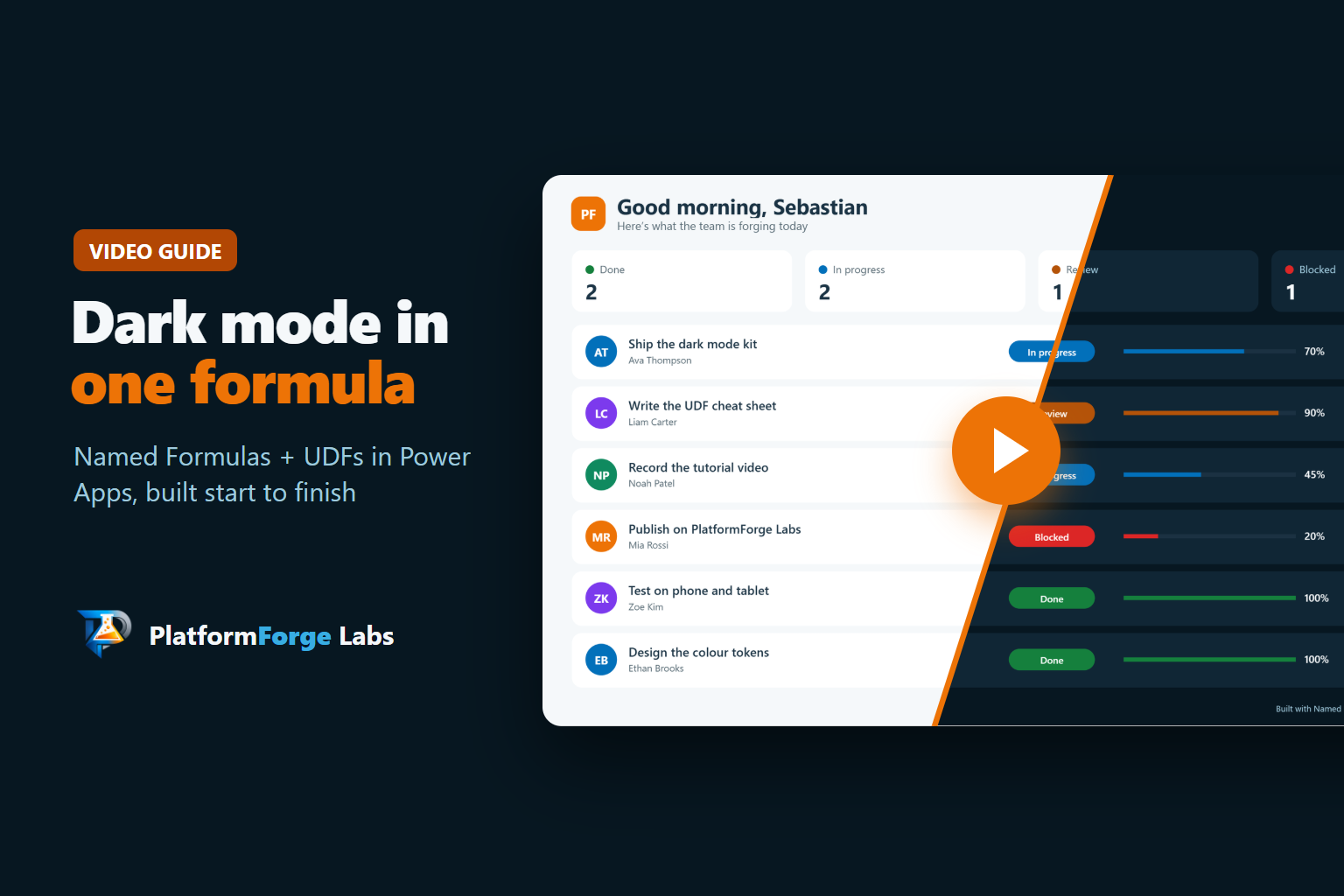
Named Formulas and user-defined functions (UDFs) are two of the most useful features in canvas apps, and two of the least used. I still see apps that rebuild the same colour logic on every screen, push everything into App.OnStart, and copy the same If into twenty labels.
So instead of another explanation, here is the feature working. One Named Formula holds the whole theme. Six small UDFs handle initials, status colours, "12 min ago", the greeting and the theme switch. One button flips the entire app between light and dark.
Watch the video, then build it yourself with the steps below. Every screenshot comes from a real Power Apps Studio session.
Dark mode in one formula: the full build in about three minutes, no voiceover
What is in the video
| Time | Chapter |
|---|---|
| 0:00 | The flip: one click, the whole app goes dark |
| 0:13 | What you will build |
| 0:27 | Named Formula and UDF in one minute |
| 0:41 | Step 1: create a blank canvas app |
| 0:53 | Step 2: open App → Formulas |
| 1:06 | Step 3: write the Named Formula |
| 1:29 | Step 4: write your UDFs |
| 1:59 | Step 5: use them on the screen |
| 2:24 | The payoff |
| 2:35 | Pros, cons, risks and limitations |
Want the finished app and every formula? The members' downloads at the bottom of this page include the PDF kit, the App.Formulas file ready to paste, a control-by-control cheat sheet and an unmanaged solution you can import and open in seconds. Membership is free.
The two ideas in one minute
A Named Formula is a name for a value. You write it once in App.Formulas, and Power Apps recalculates it by itself whenever the things it reads change. There is no refresh code and nothing to set in OnStart.
A UDF (user-defined function) is your own function with typed inputs and a typed output. Write it once, call it from any control. A behaviour UDF wraps its body in { } and returns Void, which lets it run actions such as Set or Patch.
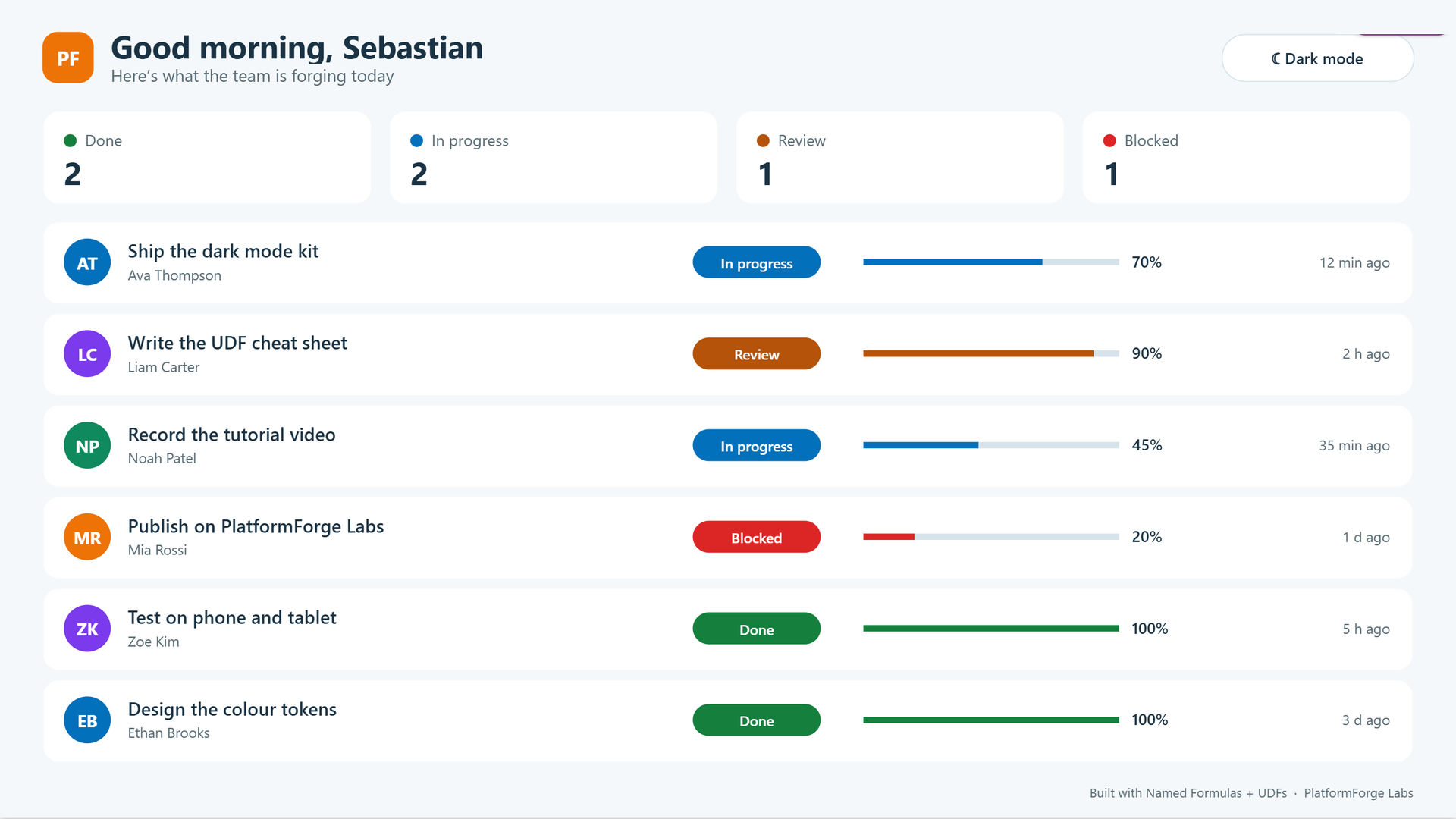
The finished board in light mode: every colour comes from one Named Formula
Create a blank canvas app
Go to make.powerapps.com, select Create, then Create from blank, and pick Tablet for a fixed 1366 × 768 canvas. Press Ctrl + S and give the app a name.
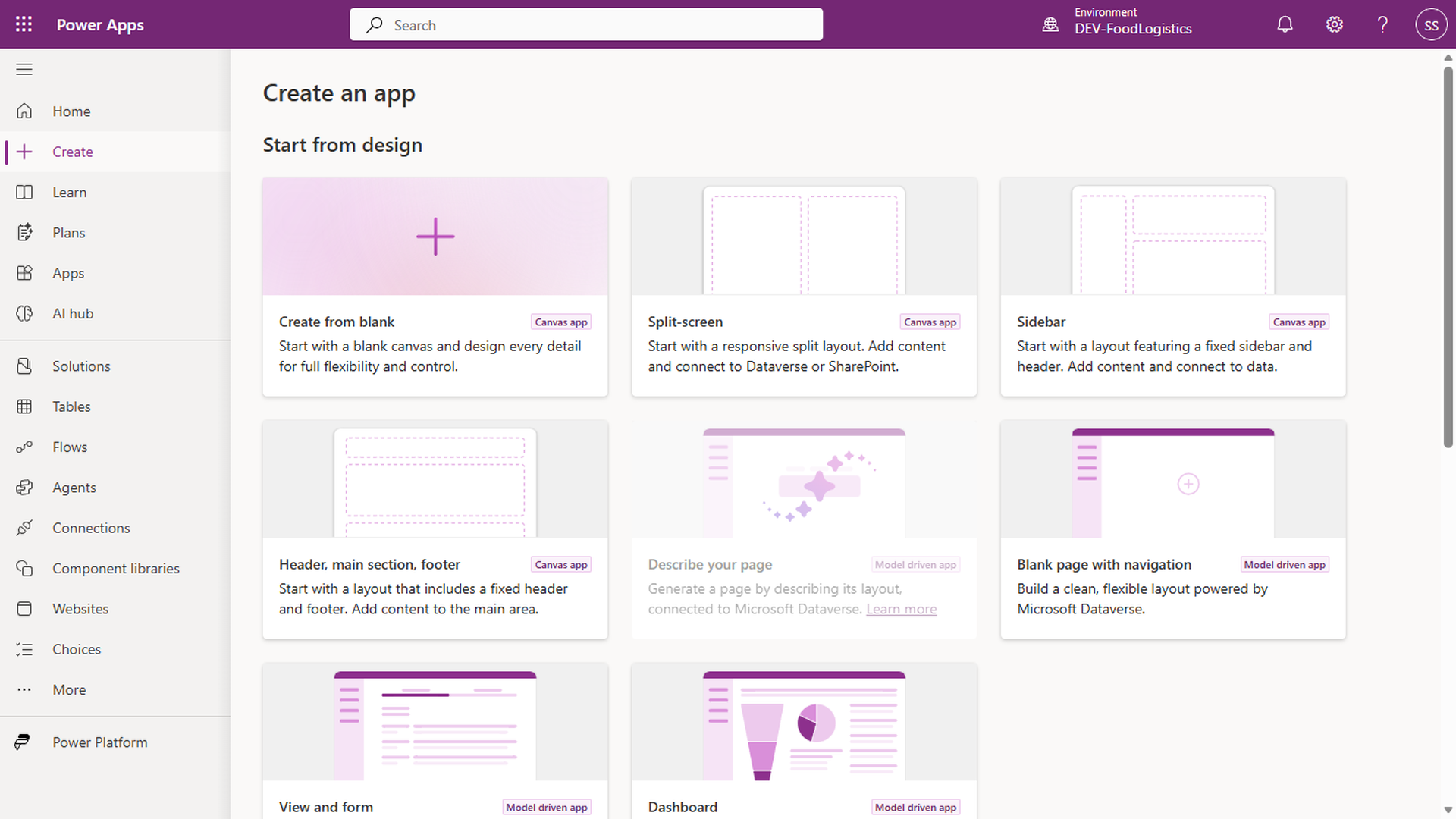
Create from blank is the first card under Start from design
You should see an empty Studio with App and Screen1 in the Tree view.
Open App → Formulas
Select App in the Tree view, then pick Formulas in the property list at the top left. Expand the formula bar with the chevron on the right so you have room to write.
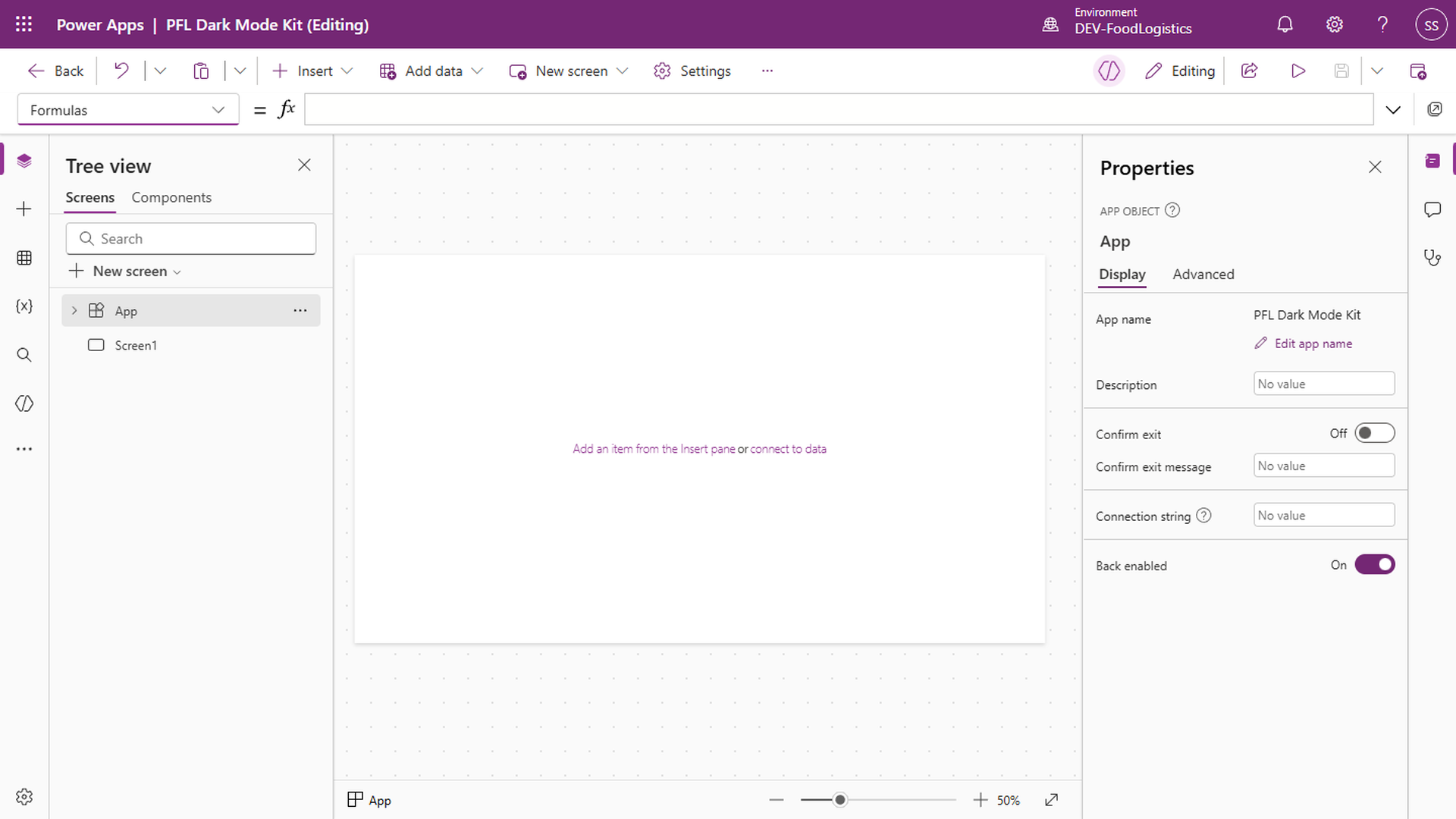
App.Formulas selected: this is where Named Formulas and UDFs live
Working in an existing app? User-defined functions are off by default there. Go to Settings → Updates → New and turn on New analysis engine and User defined functions before you paste any UDFs. New apps have it on already.
Write the Named Formula
The theme is one record per mode. gblDark decides which record you get.
nfTheme = If(gblDark,
    { Bg: ColorValue("#071721"), Ink: ColorValue("#F5F8FA"), ... },
    { Bg: ColorValue("#F5F8FA"), Ink: ColorValue("#1A3344"), ... }
);
Add a second Named Formula for sample data, nfTasks, so the screen has something to show. Swap it for SharePoint or Dataverse later.
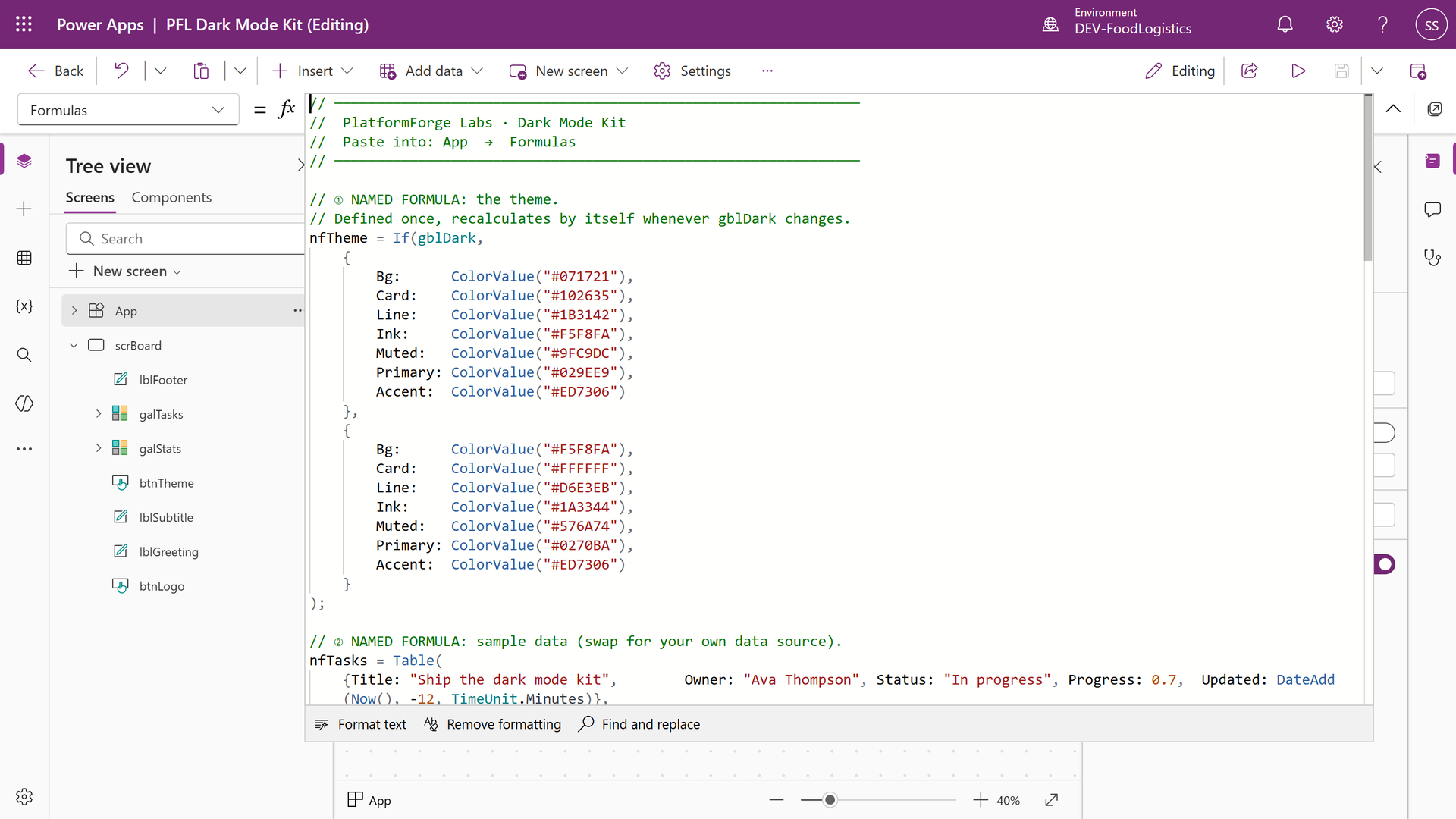
nfTheme in App.Formulas: a light record and a dark record
Write your UDFs
Each UDF does one job and declares its types.
fnInitials(name: Text): Text =
    Upper(Concat(FirstN(Split(Trim(name), " "), 2), Left(Value, 1)));
fnStatusColor(status: Text): Color uses Switch to give each status its colour. fnTimeAgo(when: DateTime): Text uses DateDiff to turn a date into "12 min ago". The kit also adds fnGreeting and fnAvatarColor.
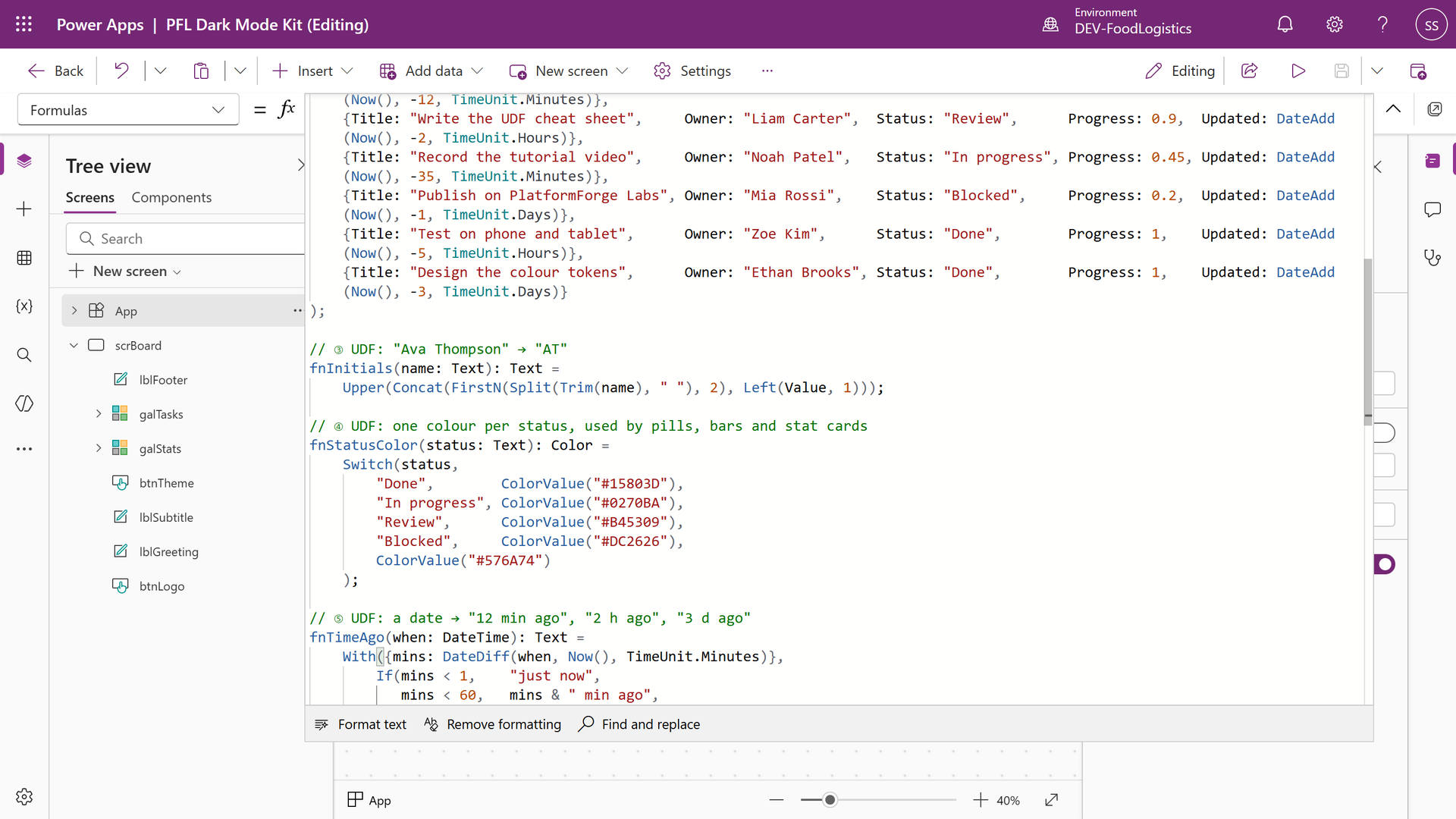
fnInitials, fnStatusColor and fnTimeAgo in App.Formulas
The theme switch is a behaviour UDF:
fnToggleTheme(): Void = {
    Set(gblDark, !gblDark)
};
Finally, select App → OnStart and add Set(gblDark, false). That gives gblDark its type and starts the app in light mode.
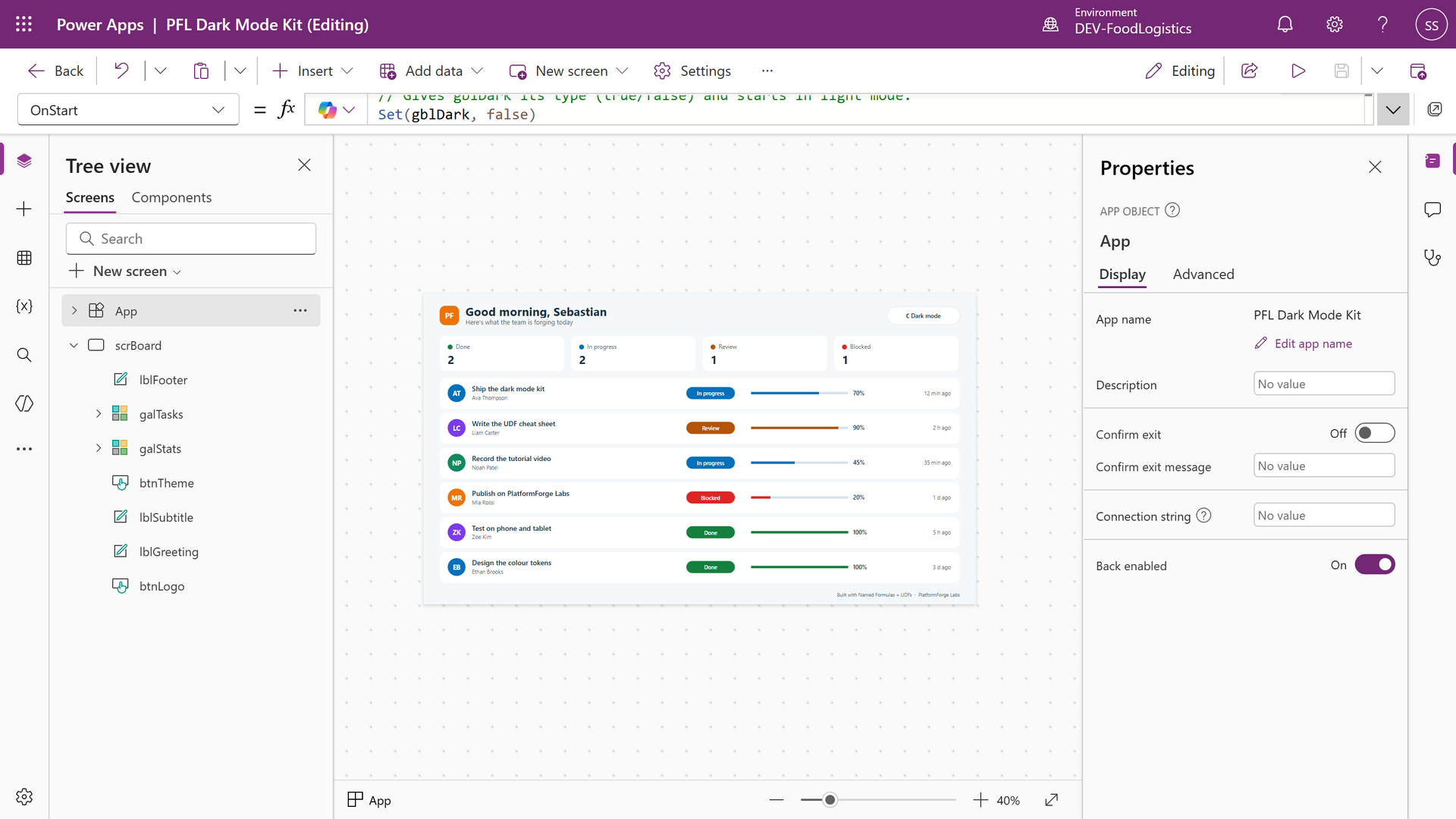
App.OnStart gives gblDark its type
Use them on the screen
Insert a vertical gallery, a few labels and buttons, then set one property each. This is where the reuse pays off: no control contains colour logic of its own.
| Control | Property | Formula |
|---|---|---|
| Screen | Fill | nfTheme.Bg |
| Gallery | Items | nfTasks |
| Avatar | Text | fnInitials(ThisItem.Owner) |
| Status pill | Fill | fnStatusColor(ThisItem.Status) |
| Time label | Text | fnTimeAgo(ThisItem.Updated) |
| Theme button | OnSelect | fnToggleTheme() |
Use nfTheme.Card, nfTheme.Ink and nfTheme.Line on every other colour. The full list of 39 control formulas is in the members' cheat sheet.
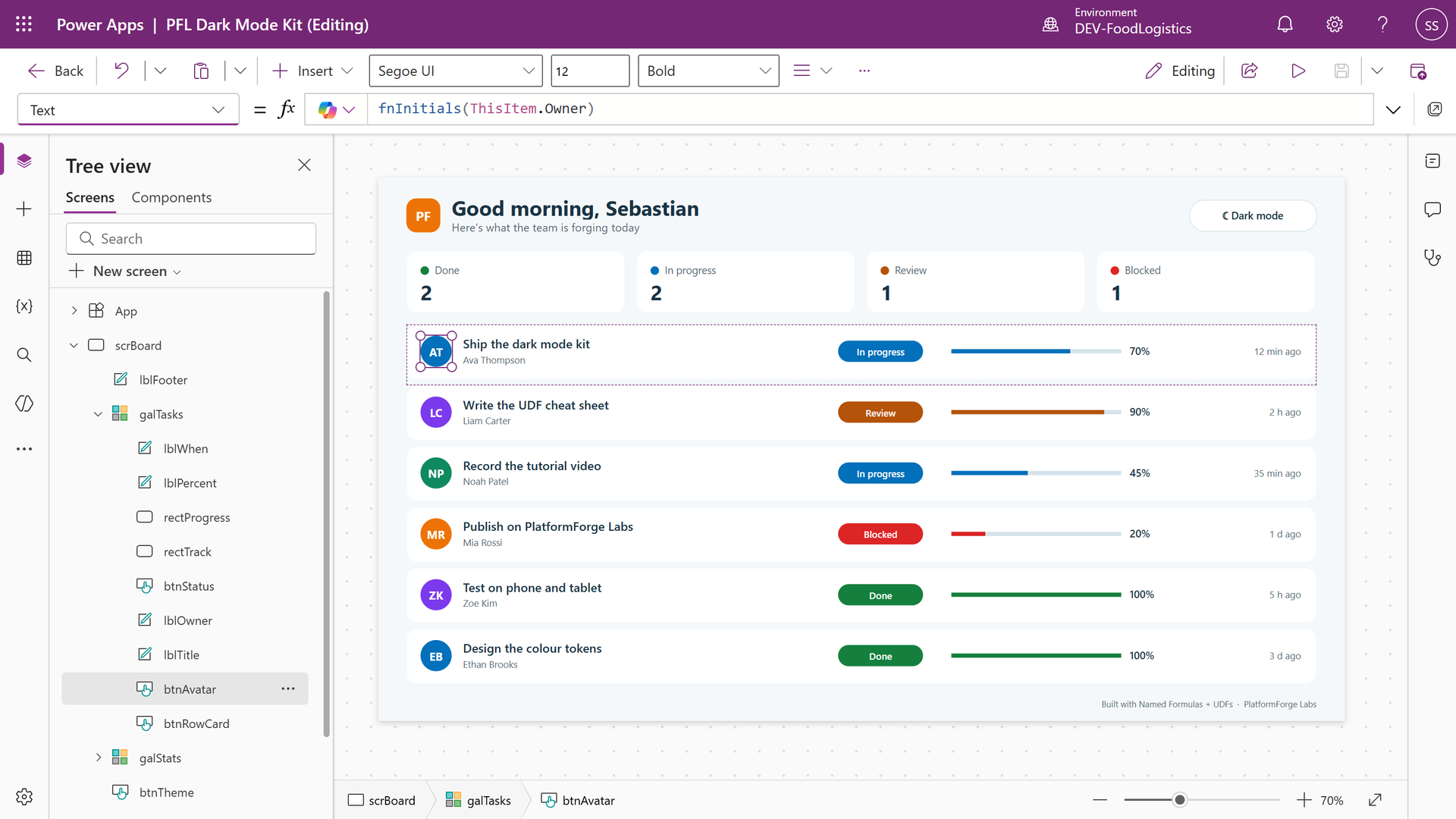
The avatar's Text calls fnInitials(ThisItem.Owner)
Press F5 and select Dark mode.
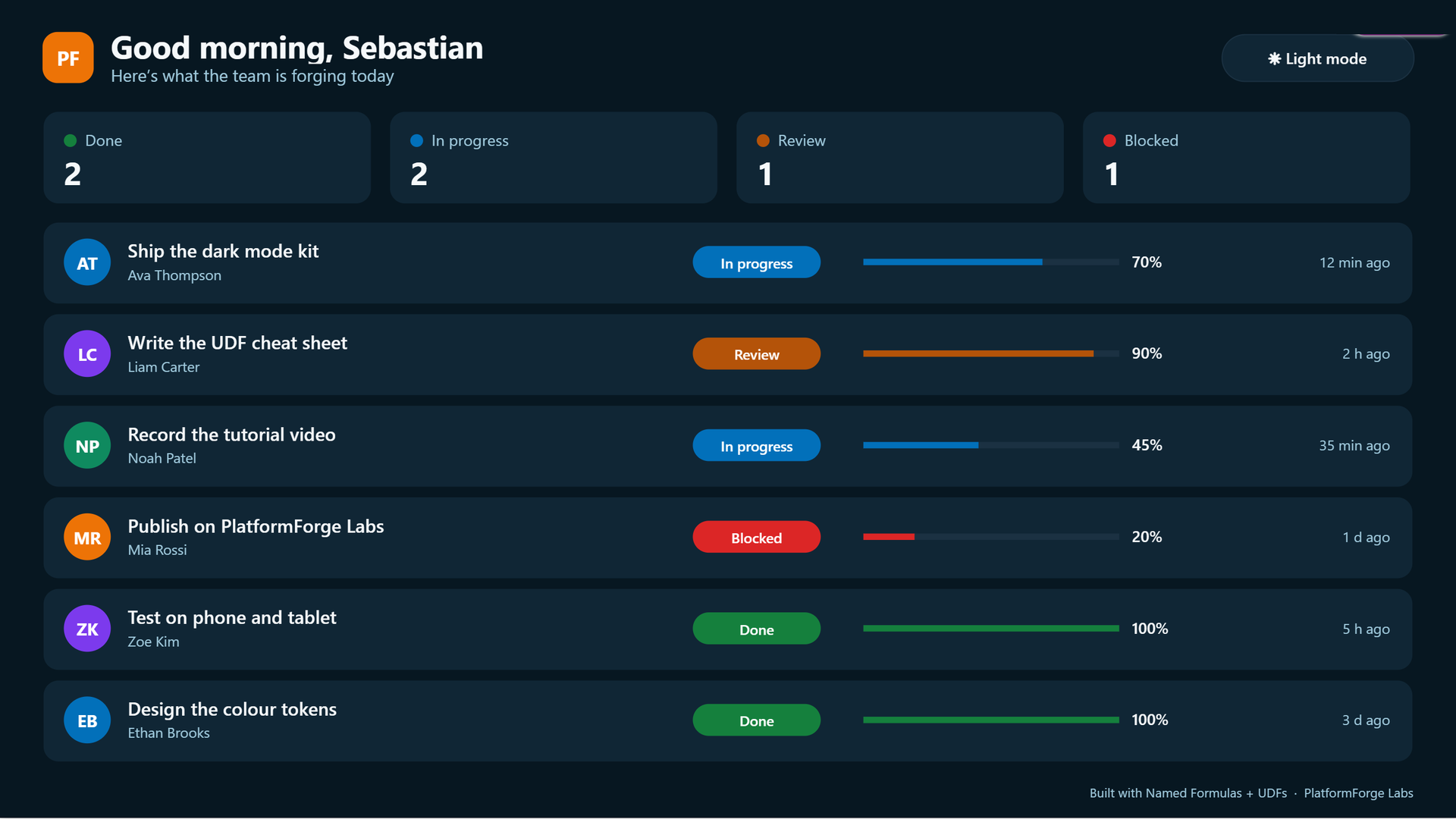
Same app, one click later: every colour re-read from nfTheme
The whole board switches theme at once, and switches back on the next click.
Pros, cons, risks and limitations
Pros
- One source of truth: change a colour once and every screen follows.
- Named Formulas recalculate by themselves, so there is no refresh code.
- Less work in
App.OnStart, which helps start time. - Typed UDF inputs catch mistakes while you build.
Cons
- Named Formulas are read-only: no
Set,Patch,CollectorNavigateinside them. - Everything lives in one app. Reuse means copying
App.Formulasor moving logic into a component library. - A long
App.Formulasgets hard to scan, so keep sections and comments.
Risks
- Pasting UDFs into an existing app before turning the feature on gives formula errors.
gblDarkresets every session. If users expect their choice to stick, store it and setgblDarkfrom it inOnStart.- Check the contrast of every colour pair in both themes.
Limitations
- Behaviour UDFs run only from behaviour properties such as
OnSelect,OnVisibleandOnChange. - No circular references between formulas.
- Delegation still applies when a formula reads a data source.
What to try next
Point nfTheme at your own brand colours, add a third theme (high contrast), or save each user's choice to Dataverse. For a deeper theme system with a responsive shell, read the companion guide Dark and Light Theme in Power Apps: A Named-Formula Theme System.
If you would like more video walkthroughs like this one, tell me which feature you want to see next.